
How to Activate SWELL User Authentication
This guide explains how to complete the SWELL user authentication process step by step.
After installing the SWELL WordPress theme, you need to complete SWELL User Authentication (also called activation).
This step is required to receive updates and access all official SWELL features.
- This guide explains:
-
- What SWELL User Authentication is
- Why activation is required
- How to activate SWELL step by step
- Important notes for international users
What Is SWELL User Authentication?
SWELL User Authentication is a system that verifies your purchase and links the theme to your website.
- It is used to:
-
- Enable automatic theme updates
- Confirm that SWELL is legitimately installed
- Provide access to official support and features
⚠️ This is not a license limit system.
SWELL is still 100% GPL and can be used on multiple websites.
Why Activation Is Required
- Without activation:
-
- ❌ Automatic updates will not work
- ❌ You may miss important bug fixes or security updates
- With activation:
-
- ✅ You can update SWELL safely from the WordPress dashboard
- ✅ You always receive the latest version
👉 Activation is strongly recommended for all users.
How to Activate SWELL User Authentication
Step 1: Log in to the WordPress Admin Dashboard
Log in to your WordPress website using an administrator account.
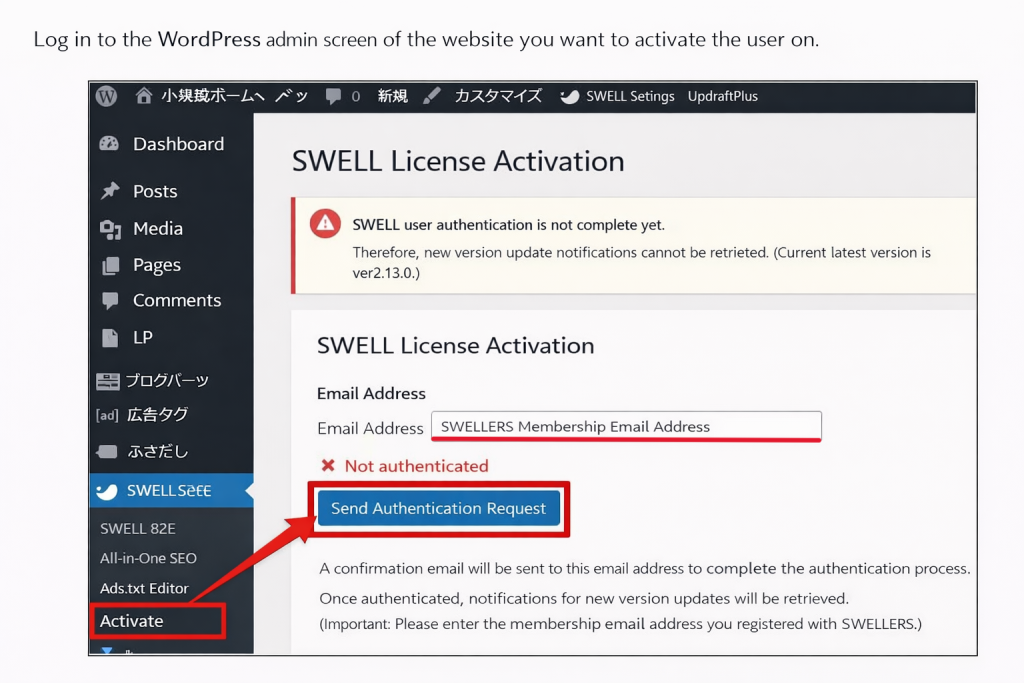
Step 2: Send an Authentication Request
- From the WordPress admin dashboard, go to SWELL Settings.
- Click the “Activate” button.
- Enter your email address.
- Click the “Send Authentication Request” button.
Step 3: Open the Authentication Email
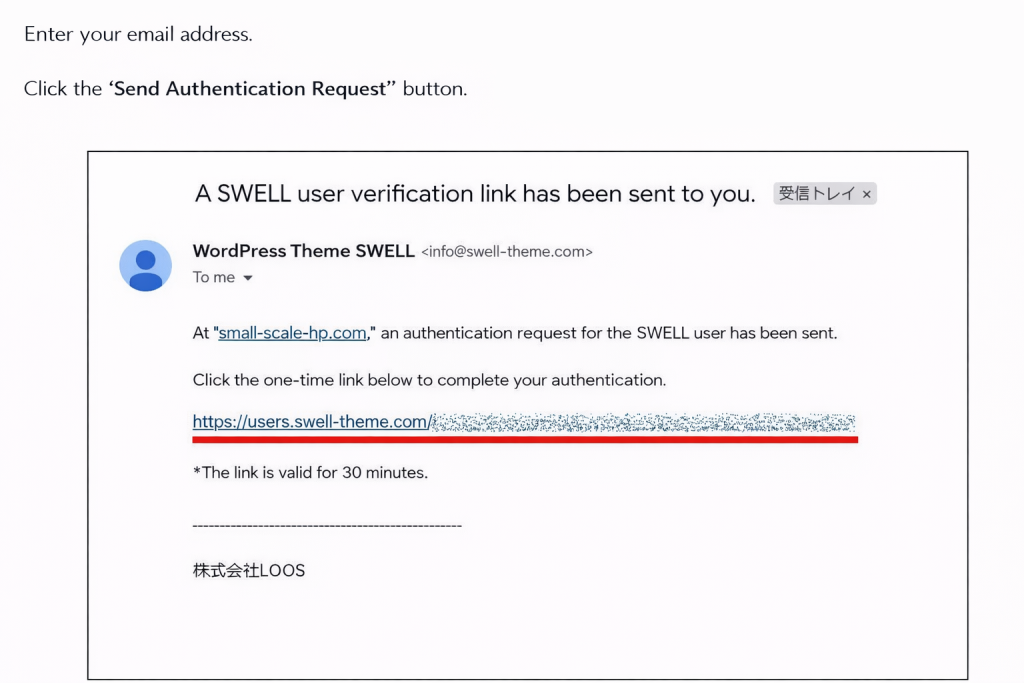
- Open the email sent to the address you entered
- Click the URL included in the email within 30 minutes.
⚠️ The authentication link will expire after 30 minutes.
Step 4: Log in to the SWELLERS’ Member Page
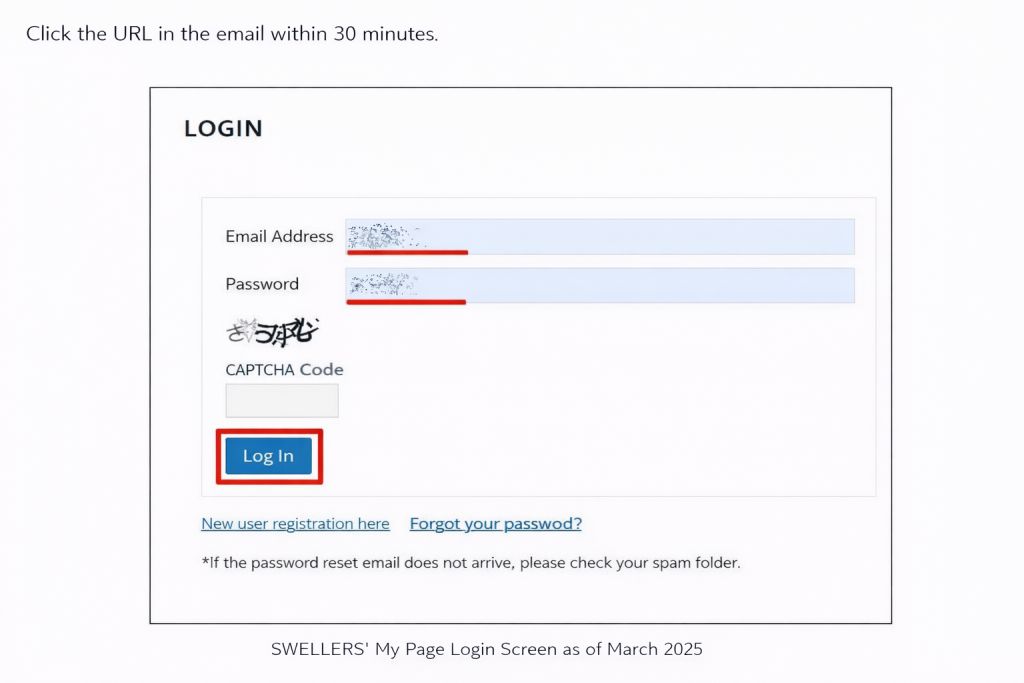
- You will be redirected to the SWELLERS’ My Page login screen.
- Enter the following information:
- Email address
- Password
- CAPTCHA code
- Click the “Log In” button.
Step 5: Confirm Website Authentication
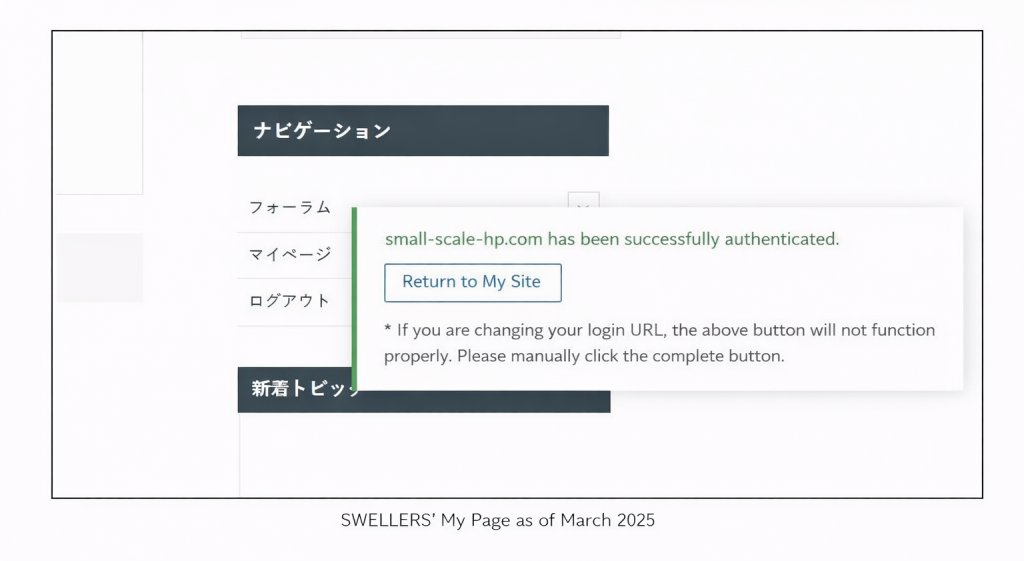
Once your website has been successfully authenticated, the following message will appear on the screen:
“Authentication for ○○○○ has been completed.”
(This message indicates that your website has been verified successfully.)
- Click the “Return to My Site” button.
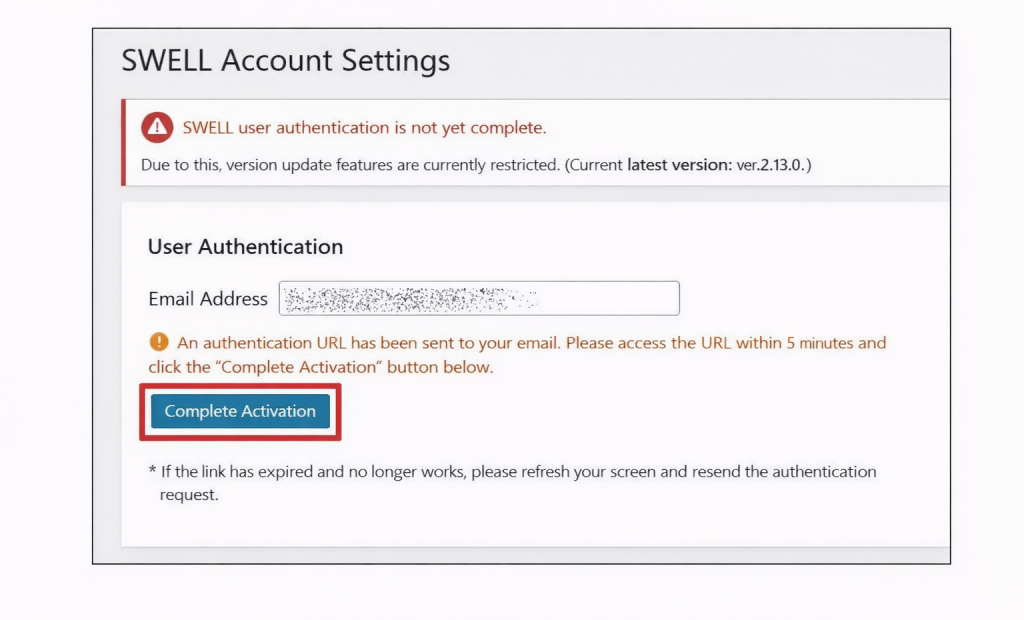
Step 6: Complete SWELL Activation
- Return to the SWELL Activation Settings page in the WordPress admin dashboard.
- Click the “Complete Activation” button.
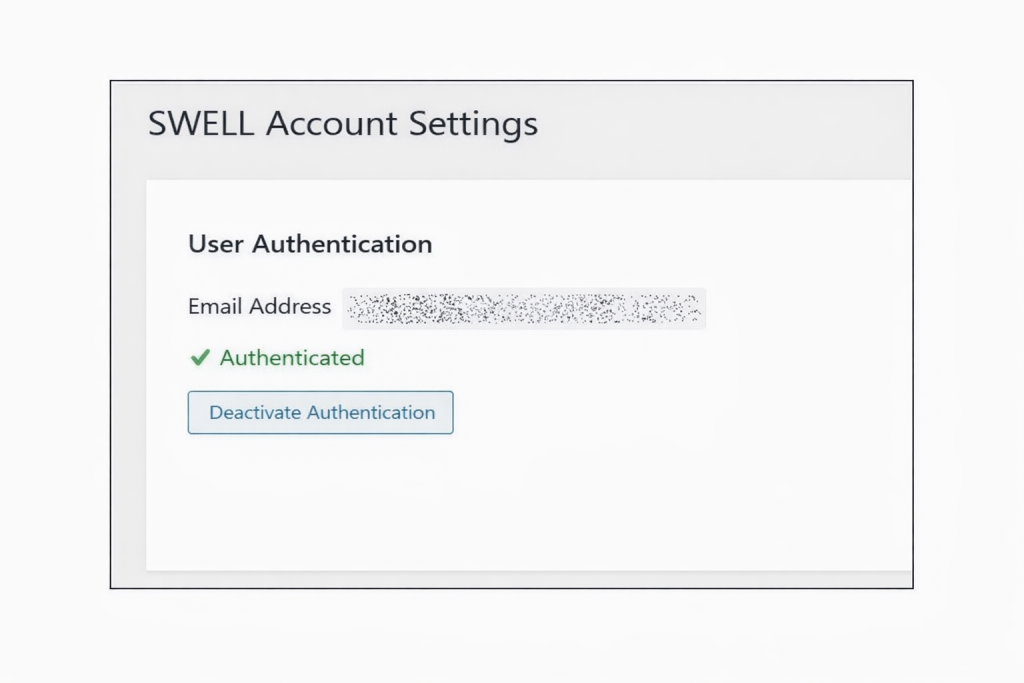
Your SWELL theme is now fully activated and ready to use.
✅ Authentication Complete
After completing these steps, your website will be properly authenticated, and all SWELL features will be available.
🔎 Optional Note (Recommended for Overseas Users)
Note:
SWELL authentication is required to access updates and official support features.
What Happens After Activation?
- After activating SWELL:
-
- Automatic updates become available
- You can update SWELL directly from Dashboard → Updates
- Your theme remains fully functional and up to date
-
No additional setup is required.
Important Notes (Please Read)
- ✔ You Can Use SWELL on Multiple Websites
-
- SWELL does not limit the number of sites
- Authentication does not restrict usage
- ✔ Authentication Does Not Affect Design or Content
-
- Your site appearance will not change
- No content will be deleted or modified
- ⚠ Activation Requires Internet Access
-
- Your server must be able to connect externally
- Firewall or security plugins may block authentication
Common Issues and Solutions
- Authentication Button Does Not Work
-
- Temporarily disable security plugins
- Check server firewall settings
- Try again after clearing cache
- Cannot Log In to SWELL Account
-
- Make sure you are using the correct email address
- Check your purchase confirmation email
- Using WordPress.com?
-
- SWELL authentication works only on self-hosted WordPress.org
- WordPress.com is not supported
Is Activation Mandatory?
Technically, SWELL can run without activation.
- However:
-
- You will not receive updates
- This may cause compatibility issues in the future
👉 Activation is highly recommended.
Summary
- SWELL User Authentication links your site to your purchase
- Required for automatic updates
- Does not limit usage (100% GPL)
- Safe and reversible
- Strongly recommended for all users
What to Do Next
- After activation, we recommend:
-
- Updating SWELL to the latest version
- Reviewing recommended initial settings
- Backing up your site regularly

コメント